> ## Documentation Index
> Fetch the complete documentation index at: https://help.envyi.ng/llms.txt
> Use this file to discover all available pages before exploring further.
# Placing Widgets
> Place live widgets on your profile
# Overview
Go to the profile page first by clicking "Widgets" and go to the top.
This guide shows you how to add and edit widgets.
# Adding Widgets
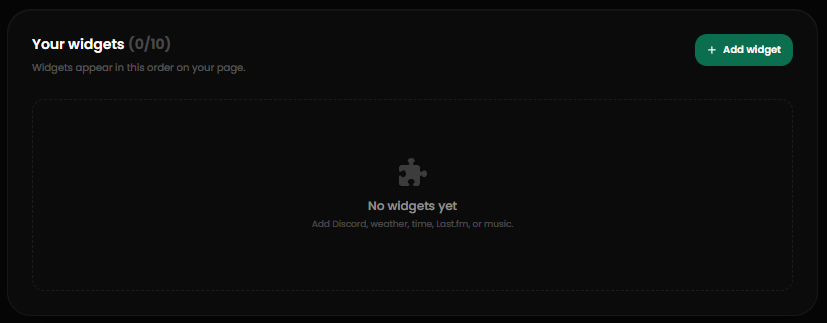 Widgets are like links, but they display information about the chosen social platform.
To add a widget, click Add Widget to open up the menu.
Once in the menu, select the social platform and provide envy with the username or any fields needed.
The `Discord` widget is special. You can use your [linked Discord account](https://envyi.ng/dashboard/settings) with it.
Widgets are like links, but they display information about the chosen social platform.
To add a widget, click Add Widget to open up the menu.
Once in the menu, select the social platform and provide envy with the username or any fields needed.
The `Discord` widget is special. You can use your [linked Discord account](https://envyi.ng/dashboard/settings) with it.